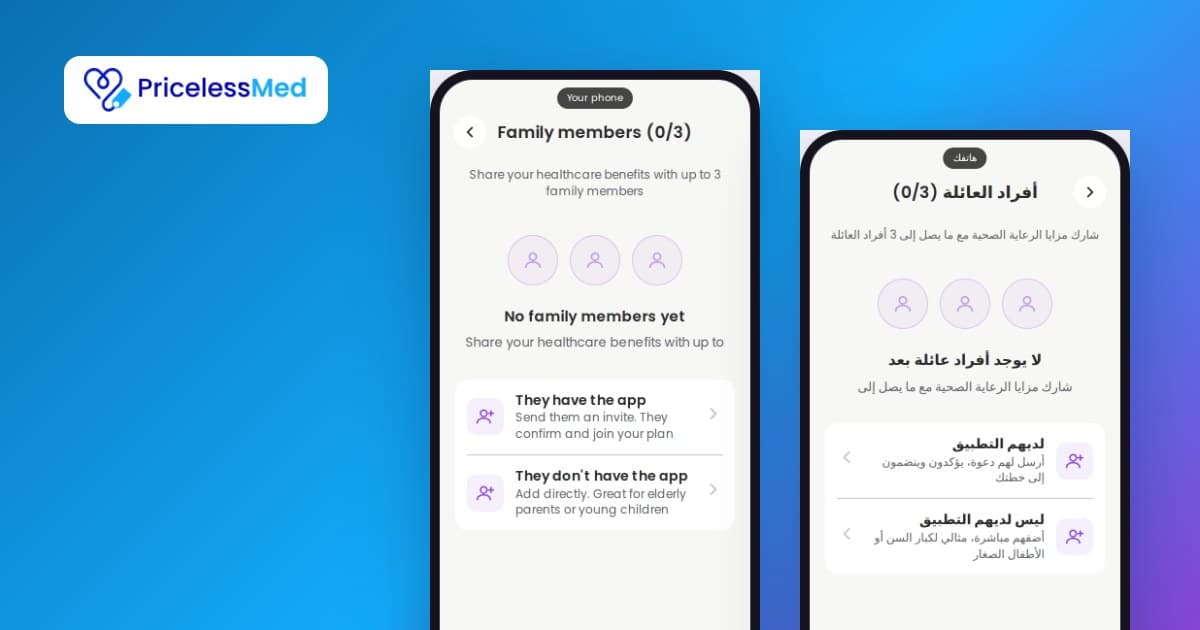
Your Premium membership covers up to 3 family members at no extra cost, so your spouse, your children or your parents get the same member prices at clinics, hospitals and labs.
Adding them takes about a minute. The steps are below, and you can also tap through the same steps in our interactive walkthrough.
Before you start
- You need an active Premium membership.
- You must be the main member, meaning the person who holds the membership. Family members cannot add other people.
- You can have up to 3 family members at one time.
Step 1: Open Family members
Open the app, go to the Profile tab and tap Family members. The number beside it shows how many places you have used, for example 0/3.
Step 2: Choose how to add the person
The app gives you two options. Which one you pick depends on one question: will this person use the app on their own phone?
Why there are two ways
They don't have the app is for people who will never open the app themselves: a young child, an elderly parent, a relative without a smartphone. You enter their details once, and their membership card appears in your Wallet. At the clinic you show the card for them.
They have the app is for adults who want to use their membership on their own: a spouse, a grown son or daughter. They keep their own account and their own phone, they browse offers and create their own vouchers, and they do not need you beside them at the clinic. Because it is their account, they have to accept your invitation themselves. That is why this option sends a link instead of asking you to type their details.
Option A: add a child or parent yourself
- Tap They don't have the app.
- Type their full name as it appears on their Emirates ID or passport.
- Tap Date of birth, scroll to the date and tap Ok.
- Tap Relationship and choose Child, Parent, Spouse or Other.
- Tap Continue.
The person now appears in your list with a "No App" label, and the counter moves to 1/3. No email address or phone number is needed for them.
Option B: invite someone who uses the app
- Tap They have the app. Your phone's share menu opens with your personal invite link.
- Send the link by WhatsApp, message or email.
- The person opens the link on their phone. The app shows your invitation.
- They tap Join Family.
They appear in your list straight away. You can send the same link to each person you want to invite, until your 3 places are taken.
If the person does not have the app yet
The link still works. It opens a page on our website with a button to download the app. They should:
- Install PricelessMed from the App Store, Google Play or AppGallery.
- Create their account, or sign in if they already have one.
- Tap your link again and choose Open in App, then Join Family.
If joining does not work
- "Cannot Join Family": the person is already in another family, or they are the main member of a family of their own. They need to leave that family first. For a child or parent, you can use "They don't have the app" instead.
- The family is full: you already have 3 members. Remove one to free a place.
- The membership is not active: invitations work only while your Premium membership is active. Once you renew, the same link works again.
- The link is not valid: part of the link was lost when it was copied. Share it again from the Family members screen.
How to remove a family member
On the Family members screen, swipe left on the person's name and tap Remove. The place becomes free and you can add someone else. Only the main member can remove people.
Common questions
Does adding a family member cost extra?
No. Up to 3 family members are included in your Premium membership.
I do not see the options to add anyone.
Your membership is not active, or you are a family member on someone else's membership. Check Profile, then Manage membership.
Can I change who is on my membership?
Yes. Remove a member and add another at any time.
Need help?
Open Profile, then Help & support in the app.